Raindrop Sudoku for a Rainy Day + 우리 어른이들 요즘 유투버로도 활동하고 다양한 분야에서 도전하느라 컴퓨터 사용할 일 많죠 다양한 일에 조금 더 도전해본 해피코드7이 해결방법이랑 Raindrop Sudoku 알려주고 갈게요 답답하고 막히는 일 없이 좋은 일들만 함께하길 바라요
앱이 멈추거나 마우스휠이 계속 돌 때 해결방법🌂☂️
앱이 멈추거나 마우스휠이 계속 돌 때
- 메모리나 그래픽 처리 누적
- 앱을 오래 여러 개 켜두면 일시적으로 버벅일 수 있어요. 특히 브라우저 탭 많거나 무거운 페이지가 있으면 더 그래요.
- 입력장치 인식 일시 오류
- 마우스, 트랙패드, 블루투스 연결, 스크롤 이벤트가 잠깐 이상해질 수 있어요.
- 앱 하나가 백그라운드에서 과하게 돌아감
- 업데이트 직후 앱, 브라우저 확장, 동기화 프로그램, 런처류가 순간적으로 CPU를 잡아먹는 경우가 있어요.
- 잠자기-복귀하면서 일부 프로세스가 리셋됨
- 노트북 일정 시간 후에 덮었다 열면 완전 재부팅은 아니어도, 일부 상태가 다시 잡혀서 정상처럼 돌아오기도 해요.
그래서 “맥북이 힘들어서 쉬어야 한다”기보다는,
사람이 잠깐 엉킨 머리를 다시 정리한 느낌에 가까워요.
그래도 오래 쓰면 가끔 쉬게 해주는 건 좋아요.
- 며칠씩 재부팅 없이 계속 쓰면 한 번 껐다 켜기
- 브라우저 탭 너무 많이 열어두지 않기
- 안 쓰는 앱 닫기
- 발열 심하면 이불/쿠션 위 말고 평평한 곳에서 쓰기
- 업데이트 직후 이상하면 재부팅 한 번 하기
지금처럼 덮었다 열고 괜찮아졌다면 고장 신호라기보다 일시 오류일 가능성이 더 큽니다.
다만 이런 증상이 자주 반복되면 그때는 원인을 좀 더 의심해야 해요. 예를 들면 특정 앱, 브라우저 확장, 블루투스 마우스, 메모리 부족 같은 거요.
Apple은 Mac이 느릴 때 사용 중인 앱이 쉽게 사용 가능한 메모리보다 더 많은 메모리를 요구할 수 있고, Activity Monitor에서 메모리 사용량을 확인하라고 안내합니다. 또 CPU를 많이 쓰는 앱이나 백그라운드 프로세스가 있으면 시스템이 버벅일 수 있고, Activity Monitor로 문제 프로세스를 찾거나 종료할 수 있다고 설명합니다. GPU 작업량도 확인할 수 있어서 그래픽 관련 부하가 큰 상황인지 점검할 수 있습니다. 덮었다가 다시 여는 과정에서 일시적인 앱 상태나 백그라운드 프로세스 상태가 정리되면서 증상이 사라졌을 가능성이 있습니다.
출처
https://support.apple.com/ko-kr/guide/mac-help/mchlp1731/mac
Mac 컴퓨터가 느리게 실행되는 경우
Mac이 너무 느리게 실행되는 경우 다음과 같은 몇 가지 잠재적인 원인을 점검해 볼 수 있습니다.
support.apple.com
윈도우
앱이 멈추거나 마우스 로딩 표시가 오래 돌 때
메모리나 시스템 자원 부족
앱을 오래 여러 개 켜두면 일시적으로 버벅일 수 있어요. Microsoft는 PC 성능이 느릴 때 Task Manager로 메모리와 시스템 리소스를 확인하라고 안내합니다. 어떤 앱이 메모리를 많이 쓰는지 보면 원인을 좁히기 쉽습니다.
백그라운드 앱이나 시작 프로그램 과다 실행
윈도우는 시작할 때 자동으로 실행되는 앱이 많으면 부팅뿐 아니라 평소 백그라운드 사용량도 늘어날 수 있습니다. Microsoft도 성능 개선 방법으로 Startup apps 비활성화를 안내하고 있습니다.
CPU를 많이 쓰는 앱이 순간적으로 시스템을 잡아먹음
특정 앱이나 백그라운드 프로세스가 CPU 사용량을 급하게 올리면, 앱이 멈춘 것처럼 보이거나 전체 시스템이 버벅일 수 있어요. Microsoft는 Task Manager로 이런 항목을 확인하도록 안내합니다.
그래픽 처리 부하
영상, 효과, 게임, 브라우저의 무거운 페이지처럼 그래픽 작업이 많은 경우에는 GPU 부하도 영향을 줄 수 있어요. Microsoft는 GPU가 그래픽·효과·비디오 같은 작업을 담당한다고 설명합니다.
절전/슬립 후 일부 상태가 다시 잡히는 경우
노트북을 잠자기 상태로 두었다가 다시 켜면 완전 재부팅은 아니지만, 작업 중이던 상태로 빠르게 복귀합니다. 이 과정에서 일시적으로 꼬였던 앱이나 장치 상태가 풀려서 정상처럼 돌아오는 경우가 있을 수 있어요. Microsoft는 Sleep이 전력을 적게 쓰고, 빠르게 이전 작업 상태로 돌아오게 해준다고 안내합니다.
그래서 “윈도우 노트북이 힘들어서 쉬어야 한다”기보다는,
잠깐 엉킨 앱·메모리·백그라운드 상태가 정리된 느낌에 가깝습니다.
그래도 오래 쓰면 가끔 정리해주는 건 좋아요.
- 며칠씩 재부팅 없이 계속 썼다면 한 번 다시 시작하기
- 브라우저 탭 너무 많이 열어두지 않기
- 안 쓰는 앱 닫기
- 시작 프로그램 줄이기
- 증상이 다시 나오면 Task Manager에서 CPU, 메모리, GPU 많이 쓰는 항목 보기
- 계속 반복되면 클린 부트로 충돌 앱이 있는지 확인하기
지금처럼 잠깐 멈췄다가 다시 정상으로 돌아왔다면 고장 신호라기보다 일시적인 시스템/앱 문제일 가능성이 더 큽니다. 다만 이런 증상이 자주 반복되면 특정 앱, 브라우저 확장, 시작 프로그램, 메모리 부족, 드라이버 문제를 의심해보는 게 맞습니다.
출처
Microsoft Support, Tips to improve PC performance in Windows
Microsoft Support, Shut down, sleep, or hibernate your PC
Microsoft Support, All about graphics processing units (GPUs)
Microsoft Support, How to perform a clean boot in Windows
Microsoft Support, Error codes in Device Manager in Windows
When an app freezes or the spinning cursor keeps appearing, there can be several possible reasons.
Accumulated memory or graphics load
If too many apps stay open for a long time, the system can temporarily slow down. This becomes more likely when you have many browser tabs open or heavy pages running in the background.
Temporary input device recognition issues
Sometimes the mouse, trackpad, Bluetooth connection, or scrolling events can behave abnormally for a short time.
One app may be overusing resources in the background
Right after an update, certain apps, browser extensions, sync tools, or launcher-type programs may suddenly consume a large amount of CPU power.
Some processes may reset after sleep and wake
If you close and reopen your laptop after some time, it is not a full reboot, but some internal states may reset and return to normal.
So rather than saying, “The MacBook needed rest,”
it is often closer to saying that the system was temporarily tangled up and then reorganized itself.
Still, it is good to give your laptop a chance to refresh from time to time.
- Restart it once if it has been running for days without a reboot
- Avoid keeping too many browser tabs open
- Close apps you are not using
- If it gets too hot, use it on a flat surface instead of on blankets or cushions
- If problems start after an update, try restarting once
If it returned to normal after closing and reopening it like this, it is more likely to have been a temporary glitch than a sign of hardware failure.
However, if this keeps happening often, then it is worth looking more closely into possible causes such as a specific app, browser extension, Bluetooth mouse issue, or low memory.
Apple explains that when a Mac runs slowly, one possible reason is that the apps in use may require more memory than is easily available, and it recommends checking memory usage in Activity Monitor. Apple also notes that apps or background processes using too much CPU can make the system sluggish, and that Activity Monitor can help identify and quit problematic processes. GPU usage can also be checked, which helps determine whether graphics-related workload is contributing to the slowdown. In cases like this, it is possible that closing and reopening the laptop helped clear a temporary app or background-process issue.
Source
https://support.apple.com/ko-kr/guide/mac-help/mchlp1731/mac
Mac 컴퓨터가 느리게 실행되는 경우
Mac이 너무 느리게 실행되는 경우 다음과 같은 몇 가지 잠재적인 원인을 점검해 볼 수 있습니다.
support.apple.com
Window
There are several possible causes to check when your Mac is running very slowly.
support.apple.com
When an app freezes or the loading cursor keeps spinning on Windows, similar causes may also apply.
Lack of memory or system resources
If too many apps stay open for a long time, the system can temporarily slow down. Microsoft recommends checking memory and system resources through Task Manager when PC performance drops. Looking at which apps are using the most memory can make it easier to identify the cause.
Too many background apps or startup programs
If too many apps launch automatically when Windows starts, this can increase background resource usage not only during boot but throughout normal use. Microsoft also recommends disabling unnecessary startup apps to improve performance.
A CPU-heavy app may temporarily overload the system
If a specific app or background process suddenly uses too much CPU, the whole system may feel frozen or sluggish. Microsoft recommends checking this in Task Manager.
Graphics-related workload
GPU load can also matter when running videos, effects, games, or heavy browser pages. Microsoft explains that the GPU handles graphics, effects, and video-related tasks.
Some states may reset after sleep/wake
When a laptop wakes from sleep, it does not perform a full reboot, but it quickly returns to the previous working state. During that process, a temporarily unstable app or device state may sometimes clear itself. Microsoft explains that Sleep uses little power and allows the PC to resume work quickly.
So rather than saying, “The Windows laptop needed rest,”
it is often more accurate to say that a temporarily tangled app, memory, or background state became stabilized again.
Still, it is helpful to refresh the system sometimes.
- Restart it if it has been running for days without rebooting
- Avoid keeping too many browser tabs open
- Close apps you are not using
- Reduce startup programs
- If the issue happens again, check which processes are using the most CPU, memory, or GPU in Task Manager
- If it keeps happening, try a clean boot to check whether another app is causing conflicts
If the problem went away after a temporary freeze, it is more likely to have been a temporary system or app issue rather than a hardware failure. But if it happens repeatedly, then it makes sense to suspect a specific app, browser extension, startup program, memory shortage, or driver-related problem.
Sources
Microsoft Support, Tips to improve PC performance in Windows
Microsoft Support, Shut down, sleep, or hibernate your PC
Microsoft Support, All about graphics processing units (GPUs)
Microsoft Support, How to perform a clean boot in Windows
Microsoft Support, Error codes in Device Manager in Windows
노트북 닫고있는 동안 스도쿠 몇 판해도 되구 다른 일하면서 좀 쉬는 시간이라고 생각하셔도 될 것 같아요 좋은 나날들 되세요
https://uplifestyle.tistory.com/850
Happycode7 Mini Arcade — Offline Puzzle Set
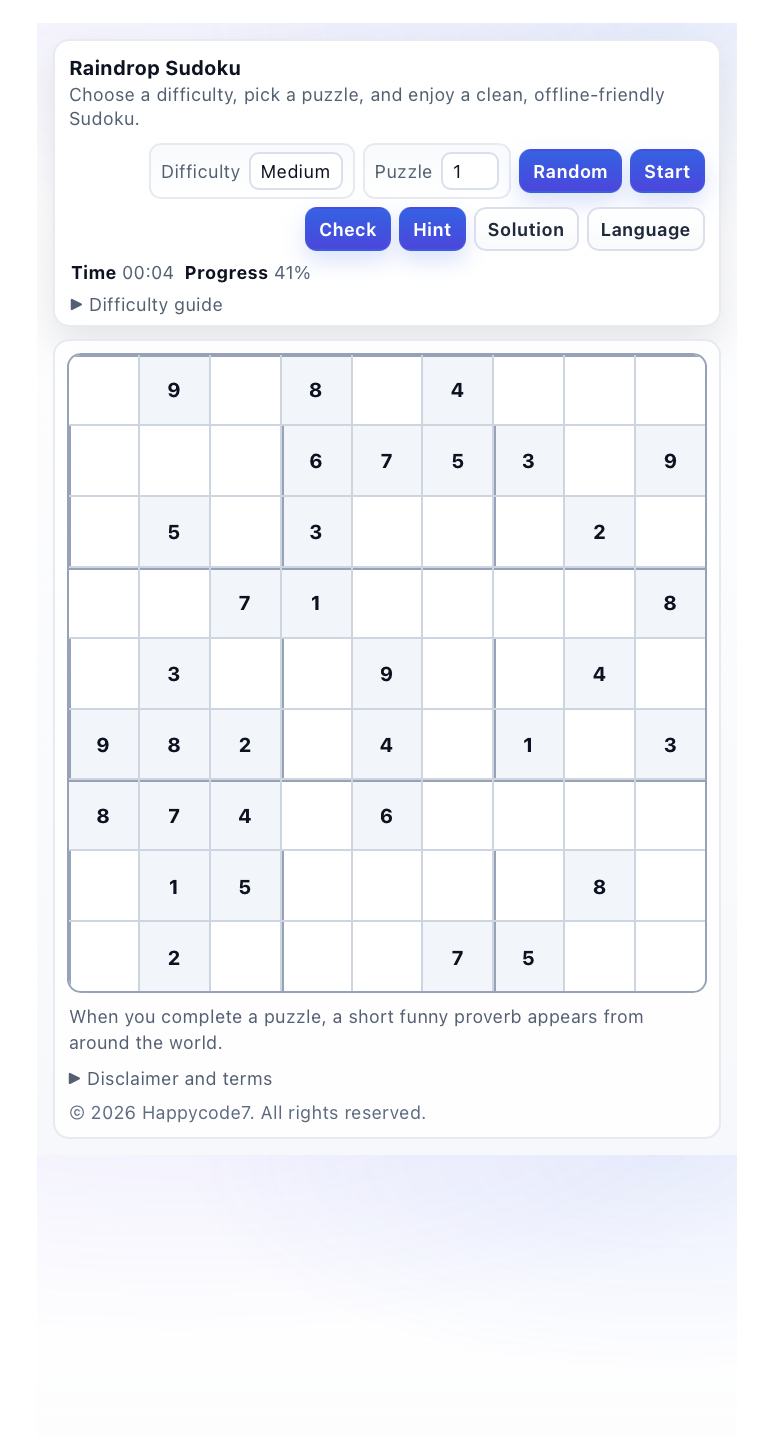
Raindrop Sudoku Choose a difficulty, pick a puzzle, and enjoy a clean, offline-friendly Sudoku. Difficulty Easy Medium Hard Expert Puzzle Random Start Check Hint Solution Language ..
uplifestyle.tistory.com
Free Offline Sudoku Game in Browser – No Download, No Login, Multi-Language Puzzle Tool
Free Offline Sudoku Game in Browser – No Download, No Login, Multi-Language Puzzle Too...
blog.naver.com
#MacBookPro #MacLag #SpinningWheel #MacSlow #MacFreeze #Beachball #macOS #MacPerformance #MacTroubleshooting #ActivityMonitor #MemoryPressure #CPUUsage #BackgroundProcess #SleepWake #MacBug #SlowMac #AppleLaptop #SystemLag #MacFix #LaptopLag #rainyday #Sudoku #RaindropSudoku #PuzzleGame #BrainGame #LogicPuzzle #NumberPuzzle #RainyDayGame #CasualGame #BrowserGame #FreePuzzleGame #NoDownloadGame #NoLoginGame #OfflineGame #DailyPuzzle #MindTraining #RelaxingGame #PuzzleChallenge #SinglePlayerGame #WebGame #MultiLanguageGame #macupdate
'+실생활에 필요한 소프트웨어 > 실생활과 소프트웨어' 카테고리의 다른 글
| 설 날에 아이들과 함께 시간 보낼 수 있는 무료 소프트웨어 모음 가져왔어요 (1) | 2026.01.29 |
|---|---|
| 업무 효율 올리는 길이·거리·면적 측정 도구 '길이거리면적' |실무 사용법 보고가세요 (0) | 2026.01.27 |
| SKU 늘리기 전 꼭 해야 하는 연초 셀러 운영 구조 점검! 'Serverless Smart Seller Toolkit'(무료)^.^알아가세요 (0) | 2026.01.25 |
| 🎛️ 전자음이 ‘잘’ 들리는 순간, 믹싱의 수준이 갈린다.두둠칫2 – AI 음악 분석 툴킷(무료)을 소개합니다 (1) | 2026.01.25 |
| 👢완벽한 부츠핏, 발목·종아리까지 재는 가락목 줄자 활용법 보고가세요~!⌚🧢💍 (0) | 2026.01.24 |


